
Most people assume Dark Mode and Smart Invert do the same thing. They believe both features switch bright screens to dark for easier viewing. And in basic terms, that’s correct. But if you rely on these features to read, navigate, or audit a site, you’ll know they behave very differently.
For users with low vision or contrast sensitivity, these settings can determine whether content is accessible or not. For developers and testers, these features show how your site performs in real-world conditions, which is crucial for accessibility audits.
In this guide, we’ll break down what Dark Mode and Smart Invert actually do and explain what that means for your site’s accessibility.
Dark Mode and Smart Invert: Key Differences for Website Accessibility
What Dark Mode Does Well
Dark Mode changes the background of supported apps and interfaces from light to dark, offering a system-wide dark color scheme. It modifies text, buttons, and UI elements across iOS and macOS, creating a more comfortable viewing experience in low-light environments.
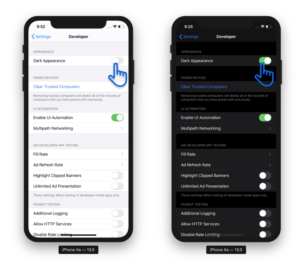
As Apple describes it:
“Dark Mode is a new dark color scheme that works system-wide and across all native apps to deliver a great viewing experience, especially in low-light environments…”
Why is dark mode important? It reduces glare and improves visual contrast, making it easier to read in dim settings. It’s especially effective for improving accessibility on OLED screens like the iPhone X and XS, where each pixel illuminates independently. This is helpful for users with light sensitivity or migraines and can even help save battery life.
Where Dark Mode Falls Short
While Dark Mode improves aesthetics and visual comfort, it doesn’t always address deeper low vision or cognitive accessibility needs. It primarily changes the visual styling of an interface, turning light backgrounds dark and adjusting text to lighter shades. But it doesn’t assess whether that new color pairing meets minimum WCAG contrast ratios. It doesn’t also adapt layout, spacing, or structure for users with cognitive or visual impairments.
In other words, Dark Mode makes your screen look different. But it doesn’t ensure that the content is more understandable or perceivable to users with low vision, dyslexia, or light sensitivity. That means if your original UI had poor contrast, confusing layouts, or cluttered text, those issues still exist. They just appear in a darker color palette.
That said, Apple does give developers the tools to make Dark Mode work well—if they use them. Its APIs allow third-party apps to match the system-wide theme or define their own dark styles.
But compatibility isn’t automatic. Developers must intentionally design for it, test it, and offer clear theme-switching options within the app. Without that, Dark Mode can break UI elements or introduce new readability issues. And if you’re managing a website instead of a native app, the challenges can get trickier, especially when trying to offer flexible visuals and meet accessibility standards.
That’s why many web teams are moving beyond theme toggles and toward more adaptive, accessibility solutions like Equally AI. It’s a lightweight, fully customizable widget that offers website users personalized accessibility settings to tailor their experience—adjusting contrast, text clarity, spacing, and more—on any site, in real time. It works with your existing design, enhancing accessibility without compromising brand or functionality.
🔓Try Equally AI: Start a 7-Day Free Trial Now
Smart Invert goes a step further. It inverts bright background colors while preserving images, media, and already-dark elements. It’s designed to mimic the benefits of Dark Mode for apps and content that don’t fully support it.
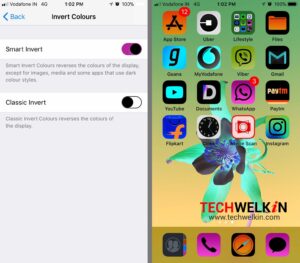
Apple introduced the Smart Invert function because its Classic Invert mode changed the colors of everything, regardless of the content type. Smart Invert, on the other hand, darkens bright areas while leaving images and videos untouched.
Unlike Dark Mode, which depends on app-level support and system-wide styling, Smart Invert is more of a forced override. It scans the interface and selectively inverts colors, darkening bright user interfaces while leaving media elements untouched.
This matters for accessibility. Smart Invert offers users with low vision or light sensitivity a more consistent browsing experience across apps that don’t support Dark Mode.
However, Smart Invert is far from perfect. It doesn’t always recognize when an interface is already dark, which can lead to double inversion effects. It may also miss certain elements or invert text in ways that reduce legibility. For instance, it will invert the background of an email or web page, even if that breaks the original design intent or contrast ratio.
So while it’s helpful, especially for users with visual sensitivities, it’s not a full accessibility solution. Think of it as a support feature, not a replacement for intentional, inclusive design.
So, Which One’s Better for Digital Accessibility?
The truth? Neither Dark Mode nor Smart Invert was designed to replace web accessibility best practices. They serve different purposes, and both come with trade-offs.
Dark Mode performs best in environments where interfaces are intentionally built with theme-aware design systems. It can reduce glare, ease eye strain, and support battery efficiency on OLED screens. But it still depends heavily on how well developers implement it.
If your web design already has poor contrast, hard-to-read text, or confusing layouts, Dark Mode won’t correct those issues. It may even make them harder to spot, especially when light-colored text blends into poorly chosen dark backgrounds, or important buttons become hard to see.
Smart Invert, on the other hand, acts more like a universal override. It doesn’t require app support, which is great for users navigating older or inflexible interfaces. But its inversion logic isn’t perfect. It can create double negatives on already-dark user interfaces or make text with insufficient contrast harder to read.
So, if you’re asking which is “better,” you’re asking the wrong question. The real question is: How well does your website/app adapt to real user needs across different devices, preferences, and impairments?
For teams serious about accessibility, the answer isn’t choosing between two imperfect features. It’s building with accessibility baked in, and supporting additional user-controlled tools that respond to how people actually interact with your content. That’s the value Equally AI offers. Our accessibility widget provides real-time customizable options to allow your website visitors to adjust their browsing preferences to suit their needs.
🔓Try Equally AI: Start a 7-Day Free Trial Now
Dark Mode and Smart Invert can be helpful, especially for users with light sensitivity or visual fatigue. But they’re not accessibility solutions. They’re shortcuts that only work well when paired with accessible design from the start. If you want your website to support all users (not a select few), accessibility needs to be intentional, flexible, and user-driven.
Start with inclusive design practices.
Support your efforts with flexible solutions like Equally AI.
And let users take it from there.
Frequently Asked Questions
What’s the main difference between Dark Mode and Smart Invert?
Dark Mode changes the app or site’s design to use darker colors, but only if it’s built to support it. Smart Invert forces color changes across the screen, even in apps that don’t support Dark Mode. This makes it more flexible, but also more likely to cause visual issues.
Does using Dark Mode automatically make my website accessible?
No. Dark Mode improves comfort and visibility in low light but it doesn’t guarantee accessibility. A site/app still needs proper contrast, clear layouts, and keyboard navigation to meet accessibility standards like WCAG.
Can Equally AI accessibility widget improve Dark Mode experiences?
Absolutely! Equally AI widget gives users more granular control over contrast, fonts, and readability settings, and more, beyond simple color inversion. This helps people with different visual or cognitive needs customize the site to work better for them.
What’s the difference between Classic Invert and Smart Invert?
Classic Invert changes every color on the screen, including photos, videos, and graphics. Smart Invert is more selective. It avoids changing media content and only inverts the interface, which helps preserve the original look of images and videos.
Why do websites sometimes look broken in Smart Invert?
Smart Invert does not understand the design of each website. It simply reverses colors based on brightness. This can make text hard to read, mess up contrast, or cause overlapping colors that weren’t part of the original design.
Does Smart Invert work with Dark Mode?
Technically, yes. But combining them is not recommended. Smart Invert can override or conflict with Dark Mode settings, which may lead to strange color combinations or make content harder to read.