

Mobile accessibility is vital in today’s digital world because it ensures everyone can use their phones and tablets easily. But sometimes, you might need to turn off certain features, like accessibility widgets or overlays, while browsing on mobile. Understanding when and how to do this ensures a smooth, user-friendly experience for you and others.
Many people still believe accessibility only benefits people with disabilities, but there is a lot of evidence to disprove this. In fact, you probably use accessibility features on your smartphone every day without realizing how much you now depend on them.
Have you ever listened to messages with text-to-speech while driving? Or perhaps the time you had to zoom in to read the tiny print on an online restaurant menu. And let’s not forget one of the most commonly used accessibility features – voice commands. (Think ‘Hey Siri’ or ‘Alexa, turn the volume up.’)
Learn More 👉 Mobile Web Accessibility: Android vs iOS
Sure, mobile accessibility features—whether built into your device or added as widgets by websites—are essential for people with disabilities. But they are also incredibly useful for everyone. But there are times when you may need to temporarily turn them off, especially if they interfere with how a page functions on your screen.
In this guide, we’ll explore how to turn off accessibility widget features on mobile devices, why you might want to do so, and how to manage them without compromising usability or respect for inclusive design.
What Are Accessibility Widgets?

Accessibility widgets—sometimes called overlays or assistants—are tools that appear on websites to help users customize their browsing experience. You’ve likely seen them as a floating icon in the corner of the screen, usually shaped like a person, a wheelchair, or the universal access symbol.
When activated, the widget opens up a menu with features such as:
- Text resizing and font adjustments
- Colour contrast toggles or dark mode
- Screen reading aids or focus highlights
- Keyboard navigation enhancements
- Pause animations or flashing content
- Dyslexia-friendly fonts and reading guides.
These features are especially helpful for people with visual, cognitive, or motor disabilities. But they can also benefit users in noisy environments, people dealing with eye strain, or anyone who just prefers more control over how they view a website.
It’s important to understand that accessibility widgets are not built into your phone’s operating system. Instead, they’re installed on the website itself, usually through a third-party service like Equally AI. They make sites easier to use for people with disabilities, especially when the site’s code doesn’t fully meet WCAG standards. Knowing how to manage or temporarily disable these tools gives you more control over your browsing experience, especially when your needs or context change.
How to Turn Off Accessibility Widget Features on Mobile Devices (Android & iOS)
Turning off an accessibility widget on your phone is usually quick and easy. The steps may vary slightly depending on the website you’re visiting and the tool it uses, but here’s a general guide for most mobile browsers.
1. Locate the widget icon.
Look for a small floating icon in the corner of the screen. It may look like a person, a wheelchair, or a general accessibility symbol.
2. Tap the icon to open the menu.
This reveals tools like text resizing, contrast adjustments, navigation aids, and more.
3. Look for a “Hide,” “Close,” or “Collapse” option.
This could appear as an “X” icon, a toggle, or a button labelled “Close Widget.”
4. Tap to hide the widget.
The overlay should disappear from view. In most cases, it stays hidden until you refresh or revisit the site.
5. (Optional) Clear site data.
If the widget reappears every time you load the page, clear your browser’s site data or cookies for that specific site. (Keep in mind that this may also log you out or reset preferences on the site.)
- On Android, go to Browser Settings > Site Settings > Storage.
- On iOS Safari, go to Settings > Safari > Advanced > Website Data.
💡Tip: Accessibility widgets often store your preferences in browser cookies. If you clear them, the widget may reset unless the site includes an option to permanently hide it.
A Quick Note on Good Design
Turning off an accessibility widget shouldn’t make a website harder to use. Widgets are meant to enhance the experience, not replace proper accessibility.
That’s why at Equally AI, we ensure accessibility starts with clean code, not just overlays. Our tools give users more control, while our platform helps businesses build accessibility into their websites from the ground up.
Five Practical Scenarios Where Turning Off Accessibility Makes Sense

Sometimes, turning off accessibility features on your phone might be necessary or even helpful. Let’s take a look at five scenarios you can easily relate with:
1. To save battery power
Some accessibility features, especially those using audio or visual enhancements (like screen readers or high-contrast mode), are power-intensive. If your phone’s battery is running low and you’re nowhere near a charger or power source, then turning off these features may help save energy.
2. To improve phone performance
Sometimes, you may need your phone to function without any special settings. It could be during a presentation or when someone is using your device. In such cases, temporarily turning off accessibility features can make the device more manageable for you and others.
3. In temporary situations
Sometimes, you may need your phone to function without any special settings. It could be during a presentation or when someone is using your device. In such cases, temporarily turning off accessibility features can make the device more manageable for you and others.
4. To prevent ‘accidents’
If you often activate accessibility features on your phone by mistake, it might be better to just turn them off. That way, you’re less likely to confuse yourself (and most likely others). Plus, you’ll ensure these features only activate when you genuinely need them.
5. To fit your current needs
An old-fashioned life advice says “Don’t let yesterday’s solutions become today’s problems. If it no longer serves a purpose, let it go”. Your needs or preferences might change over time. If certain features are no longer necessary for you, then it’s sensible to disable them.
How to Safely Disable Accessibility Features on Your Phone
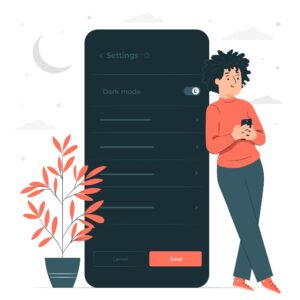
Now that you know when to disable phone accessibility, it’s crucial to ensure doing so does not negatively affect you or others. Here’s how to responsibly manage your phone’s accessibility settings:
1. Understand the impact
Yes, we’ve said this before, but it’s important to repeat it for clarity. Before turning off any feature, carefully consider how it might affect you or others. If you’re sharing a device with multiple users, talk to them before changing accessibility settings. If your phone supports it, create different user profiles to avoid constant manual adjustments.
2. Find alternative solutions
You can also consider other ways to solve the issue that does not involve disabling the accessibility feature. For example, you can turn on battery-saver mode to conserve power instead of turning off an essential setting.
3. Only disable features you don’t need
Instead of turning off all accessibility features, disable them one at a time. This helps you figure out features you really need and those you can do without. You’ll also reduce avoidable problems while using your phone
4. Re-enable temporarily disabled features
Need to switch off accessibility features just for a bit? Remember to turn them back on when you’re done. This is crucial, especially when sharing a device with others who depend on these settings. Always keep everyone’s needs in mind to ensure the device works well for all users.
5. Update your device
Make sure you keep up with the latest software updates for your device. Both Android and iOS operating systems often release new accessibility features to improve mobile experiences. System updates can also offer new ways to manage existing features, so it’s best to stay up-to-date.
Start improving your mobile experience today
Recent data shows that nine in ten Americans and 85% of the global population (over six billion people) own mobile devices. Interestingly, almost half of this number represents smartphone users. As more people use mobile technology, the need for features that make browsing on mobile devices more accessible for all rises significantly.
Accessibility widgets are part of that solution. They offer flexible, on-the-go support for users who need to adjust how they interact with a site. But knowing when and how to manage those tools, especially on mobile, can help you get the best experience without losing access to what matters.
And if you’re responsible for building or maintaining websites, remember this: accessibility isn’t only defined by what’s visible on the screen. It’s measured by how well your site works for everyone, regardless of device, ability, or context.